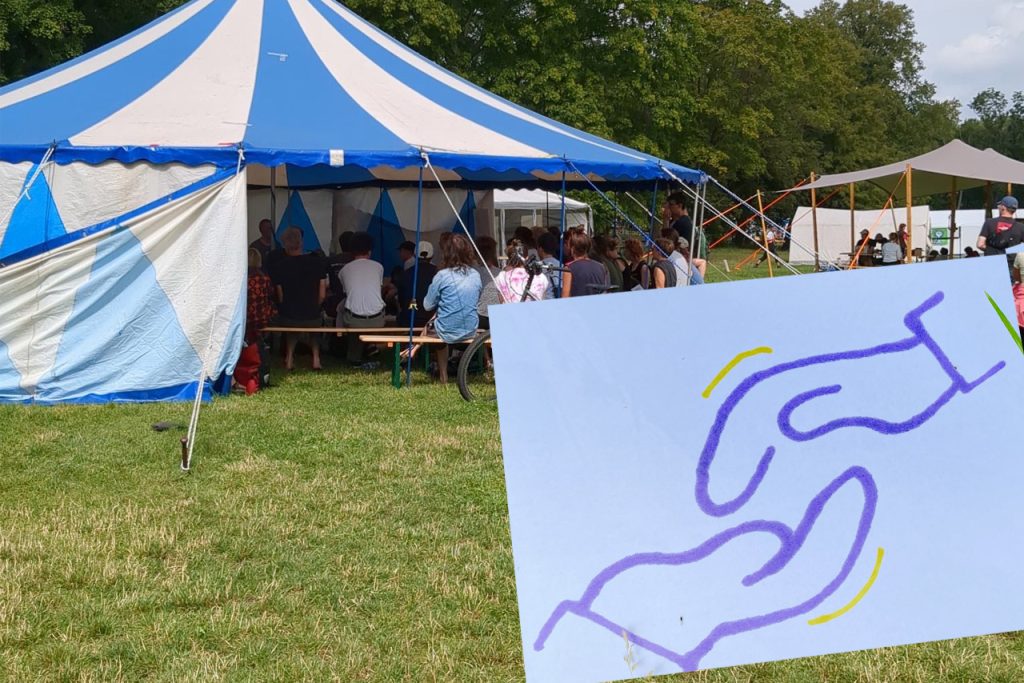
Some people find it difficult to leave their homes, need to take extra precautions against infection, or live too far away. Others have to work long hours or care for children and other people. We want these people to be able to participate in the camp as well and hear their voices.
That’s why we’ve created an online program for the first time. The speakers will be broadcast live from the camp.
There will be no live stream of the on-site audience.
The Program:
- Storytelling Café
- Tue, Aug. 18, 2:30 p.m., Interactive format, sstrong integration of the online space, German
- More Infos: https://programm.infraunited.org/scc-26-2026/talk/DCP3WZ/
- Gender Equality, Climate Change, and Justice
- Thu, Aug. 20, 4:30 p.m., workshop, English
- More Infos: https://programm.infraunited.org/scc-26-2026/talk/3MUL7W/
-
Unmasking the Green Mirage: Just Transition and the Perpetuation of Colonial Extraction in Africa
- Fri, Aug. 21, 2:30 p.m.
- More Infos: https://programm.infraunited.org/scc-26-2026/talk/THTVSU/
- DeafSpace – A Curated Introductory Lecture
- Fr, 21.08., 4:30 p.m.,
- More Infos: https://programm.infraunited.org/scc-26-2026/talk/YBEUBC/
- Chronically Radical
- Fri, Aug. 21, 8:00 PM, Film screening followed by a hybrid discussion
- More Infos: https://programm.infraunited.org/scc-26-2026/talk/YRE7EV/
- Climate Crisis and War—Double Violence Against Children in the Congo
- Sat, Aug. 22, 2:30 PM, English Tent
- More Infos: https://programm.infraunited.org/scc-26-2026/talk/RUFAZY/
- Online: How Can I Stay Safer Online? First Steps Toward Digital Safety
- Sat, Aug. 22, 4:30 p.m., Online-only workshop
- More Infos: https://programm.infraunited.org/scc-26-2026/talk/FZEQUM/
- Poetry Slam: Stories by and featuring people with disabilities
- Sat, Aug. 22, 8:30 p.m., Hybrid format in which people with disabilities share their stories.
- More Infos: https://programm.infraunited.org/scc-26-2026/talk/KM8MUU/
- Stories can also be read aloud from the online space. Please register for this in this Pad (only in German available – but you can read your text in English).
The broadcast will be streamed via Zoom.
There will be a moderator in the online room. Anyone who disrupts others will be removed from the broadcast—perhaps permanently.
Please still be mindful of your online safety when participating.
Foreword on Security
There is no single best way to do things securely. It always depends on what you need and what you’re afraid of. It makes a difference whether you’re afraid that Nazis will recognise your face, or that the police will know which computer you’re using to take part, or that your boss will know you’re politically active. You should weigh up the risks against what you want to achieve.
We use Zoom, even though it isn’t the most secure option, as Zoom stores a huge amount of data and we no longer have control over what Zoom does with it. On the other hand, it works well for most people, even with poor internet connections. People are usually easy to understand on Zoom. And on Zoom, we can display clear subtitles so that you can read what’s being said. To ensure accessibility, we’ve opted for slightly less data security.
Nevertheless, we try to provide advice that might help a lot of people. We explain how you can take part in the online programme whilst remaining relatively anonymous. However, some data is transmitted, which carries certain risks. You’ll have to decide for yourself whether that’s okay with you.
Taking part online
https://app.zoom.us
Meeting-ID: 682 8291 1552
Kenncode: 416572
You can always join the meeting. All presentations take place via the same link. When you join, you’ll need to enter the meeting ID. You can then choose whether to open the app or join via your browser. We recommend joining via your browser. Sometimes you’ll need to click ‘Download Zoom’ and then cancel the download before the button for joining via your browser appears. Sometimes even that doesn’t work. Then you can use the link at the very bottom of the page.
After that, you can enter a name. If you like, you can also add pronouns in brackets, for example: Dandelion (she/her). It’s best not to use the name that’s on your ID. You don’t want everyone at the camp and on the internet to know that. Don’t use a name that sounds racist or contains Nazi codes or anything like that. We’ll kick out anyone with names like that.
On the same page, you’ll need to enter the access code. Your browser will also ask you: ‘Do you want to join using your microphone and camera?’ If you say ‘yes’, you can allow the browser to let Zoom use your microphone and camera. You can then test the feature. However, the meeting is set up so that only the presenters are allowed to speak and switch on their cameras. If participants wish to do so, they must first ask in the chat. That’s why this is only important for you if you know you’ll need to speak or use sign language to ask your questions.
You’ll then be taken to a waiting room. Shortly before the talk begins, we’ll let you into the main meeting. You can only switch on your camera and microphone if you ask the ‘Host’ for permission. You can do this publicly or, if you select the host via the chat, by messaging only the Host’s account. Otherwise, only speakers are allowed to unmute themselves and show themselves on screen. So you can’t be seen or heard by accident. You can chat publicly with everyone. Please be respectful. If people don’t follow the camp rules, we’ll kick them out.
You can turn on subtitles under ‘More’. Please do not change the language setting. Unfortunately, the subtitles cannot be translated live. The language setting simply determines which language the transcription programme tries to ‘hear’. So it needs to match the spoken language. You can also display all the subtitles so far at once. To do this, click on ‘full transcript’.
If you’d like to say something, you can post it directly in the chat. The speaker can then respond to it, or someone in charge in the tent will read out what you’ve written. Alternatively, you can raise your hand. The host account will then unmute your microphone and you can speak your contribution yourself.
Please do not make any video or audio recordings of the meeting! The camp organisers do not record the meetings, and others should not do so either. This helps everyone feel more comfortable taking part. Of course, you are welcome to take notes on anything you find important, just as people at the camp can do in face-to-face workshops. You should simply not collect any data about other people.
Via the telephone network
+496938980596 (from Germany)
You can find numbers for dialling in from other countries at https://zoom.us/zoomconference
Session ID: 682 8291 1552
Meeting passcode: 416572
If you don’t have a (good) internet connection, you can also dial in by phone. You’ll have less anonymity when using the phone. That’s why we only recommend this if you absolutely have to.
Dial the telephone number above. When asked to by the voice prompt, enter the meeting ID followed by a #. The voice prompt will then ask for the participant ID. Simply enter a # after that. Finally, you’ll need to enter the meeting passcode. Confirm this with a # as well.
You’ll be directed to the waiting room and will hear music playing until the Host lets you into the meeting.
When you join the meeting, everyone will be able to see your phone number. You’ll be automatically muted and won’t be able to interact with the other participants.
Please do not record the meeting! The camp organisers do not record the meetings, and others shouldn’t do so either. This helps everyone feel more comfortable taking part. Of course, you’re welcome to take notes on whatever’s important to you – just as people at the camp can do in the on-site workshops. You just shouldn’t collect data about other people.
Technical tips
It’s best to join the meeting via a computer. Don’t log in to a Zoom account. Don’t use the Zoom app. It’s better to join via your browser.
Unfortunately, Zoom doesn’t work via the data-secure Tor Browser. Zoom only works with up-to-date Chrome-like browsers. You could, for example, use Firefox, Ungoogled Chromium or Helium. These browsers don’t collect as much data as Chrome.
You can use a VPN to mask your metadata. Generally speaking, you should take the time to find out which VPN is right for you. It must be one you trust, as it will usually have access to your data, even though it is not supposed to disclose it to third parties. Simple options could include Orbot or Riseup VPN, for example.
Data
Key points
The name you enter will be visible to everyone. If you’re logged in, you can change your display name, but you’ll initially join the meeting using your default name.
If you’re dialling in by phone: your number will be displayed to everyone in the meeting.
Think about whether you want to type something, speak or switch on your camera. This allows you to share information about yourself with all participants.
If you don’t use a VPN, people can work out roughly where (such as your town or county) you’re joining the meeting from. The authorities can even find out who owns the line you’re dialling in from.
The online programme is not recorded by the camp organisers. Other people should not do so either. If everyone sticks to this, the content of meeting data is only accessible live. Only metadata is stored by Zoom for a longer period.
Details
You can choose whether to join the chat or whether to enable your microphone or camera. Other data is always processed when you join.
In general, the following data is processed:
User data
- If you log in with a Zoom account, the personal data you have stored there will be processed. For example:
- unique Zoom user ID
- display name
- customer authentication data
- If you join as a guest without logging in, you can choose an alias so that you do not have to share your name with Zoom.
- If you dial in by telephone, your telephone number will be processed.
Video, audio and text data
- Video data when you enable the camera
- Audio data when you enable the microphone
- Text data when you use the chat, questions, polls or subtitles features
Video and audio data contain your image and your voice as personal data. This data can be used to identify you. The content of your posts may also make it easier for people to work out who you are.
Device information
- IP addresses of the devices used to join the meeting (and therefore your location, roughly at town or county level)
- Information about the computers, phones and other devices used when interacting with Zoom. For example:
- Device type
- Other device IDs (UDID, hard drive ID)
- PC name
- MAC address
- Operating system type and version, and client version
-
Camera type
-
Microphone
-
Speakers
-
Battery level
-
Wi-Fi information
-
Bluetooth signals
The IP address and device/hardware information generally allow conclusions to be drawn about your identity. That is why they, too, constitute personal data.
Meeting metadata
- Duration of the meeting
- Number of participants
- Start and end times of participants’ attendance
- Name and description of the meeting
- Scheduled date and time of the meeting
Data processing
The data centres that process Zoom data from the online SCC are located in Germany and the Netherlands. In certain cases, for example when you submit a support request, the data is processed in the USA.
To enable anonymous participation, only ‘extended end-to-end encryption’ is enabled. This means that Zoom meetings and webinars use 256-bit AES-GCM encryption for real-time audio, video and shared content whilst it is being transmitted between participants. Audio and video content flowing between users’ browsers is not decrypted until it reaches the recipients’ devices. However, the encryption keys for the meeting are generated and managed by Zoom’s servers. This means that, in theory, Zoom can access all content in the meeting, whilst it would be much more difficult for an external party to do so.
Further information can be found in Zoom’s Privacy Policy: https://www.zoom.com/en/trust/privacy/privacy-statement/
Link to the online room: https://system-change-camp.org/online-scc